
Ready to try it?
Scrive MCP brings Scrive's e-signature, identity verification and agreement management into your AI workflow. Connect Scrive MCP and start working with agreements through natural-language instructions.
Get connected
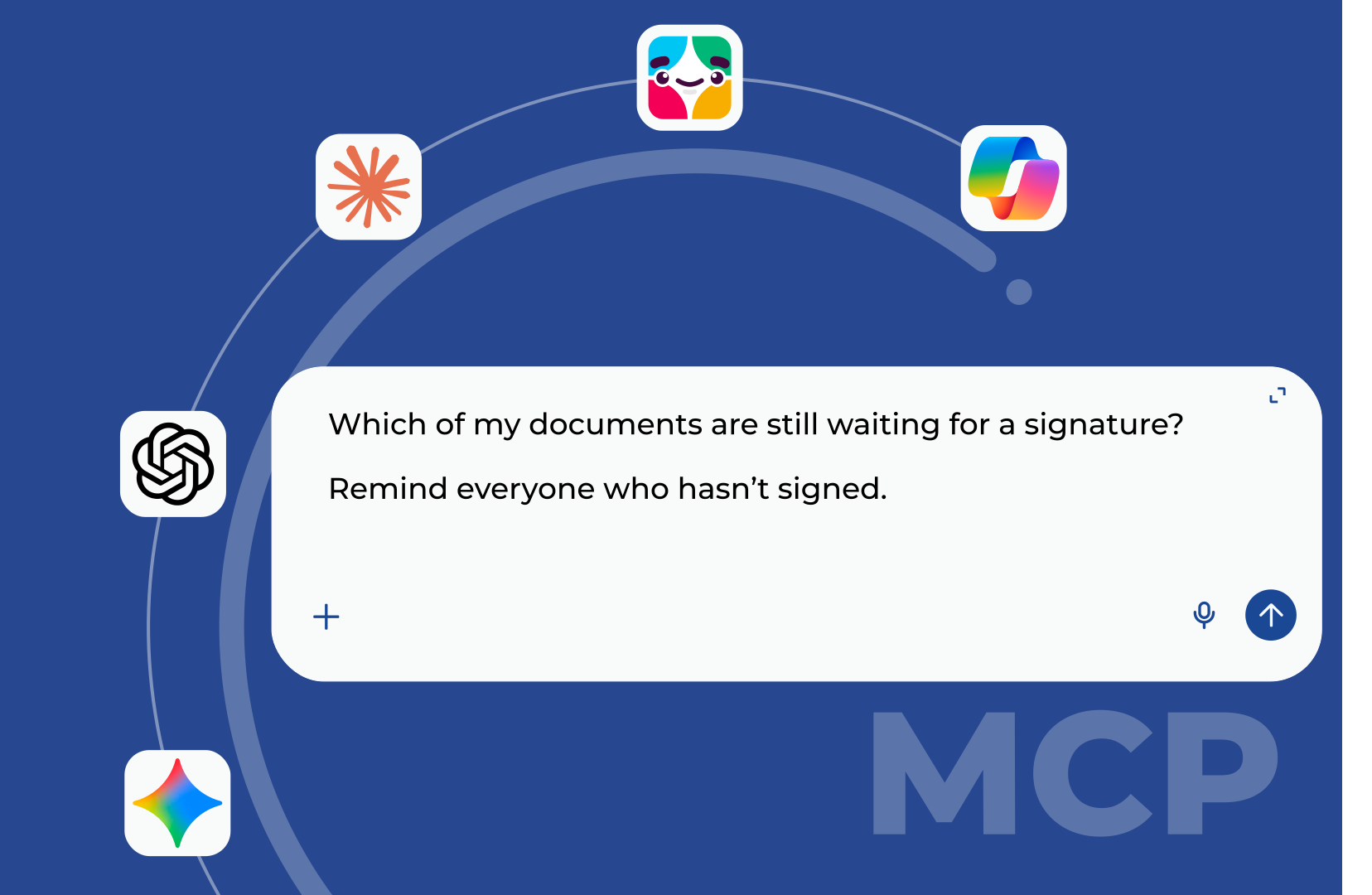
Working with agreements often means jumping between templates, documents, signing tools, spreadsheets and email. Scrive MCP lets you bring many of those actions into the AI assistant you already use.
Instead of navigating through menus, you can describe what you want to do in natural language and let your AI assistant interact with Scrive for you.
So what can you actually ask it to do? Here are seven practical examples:
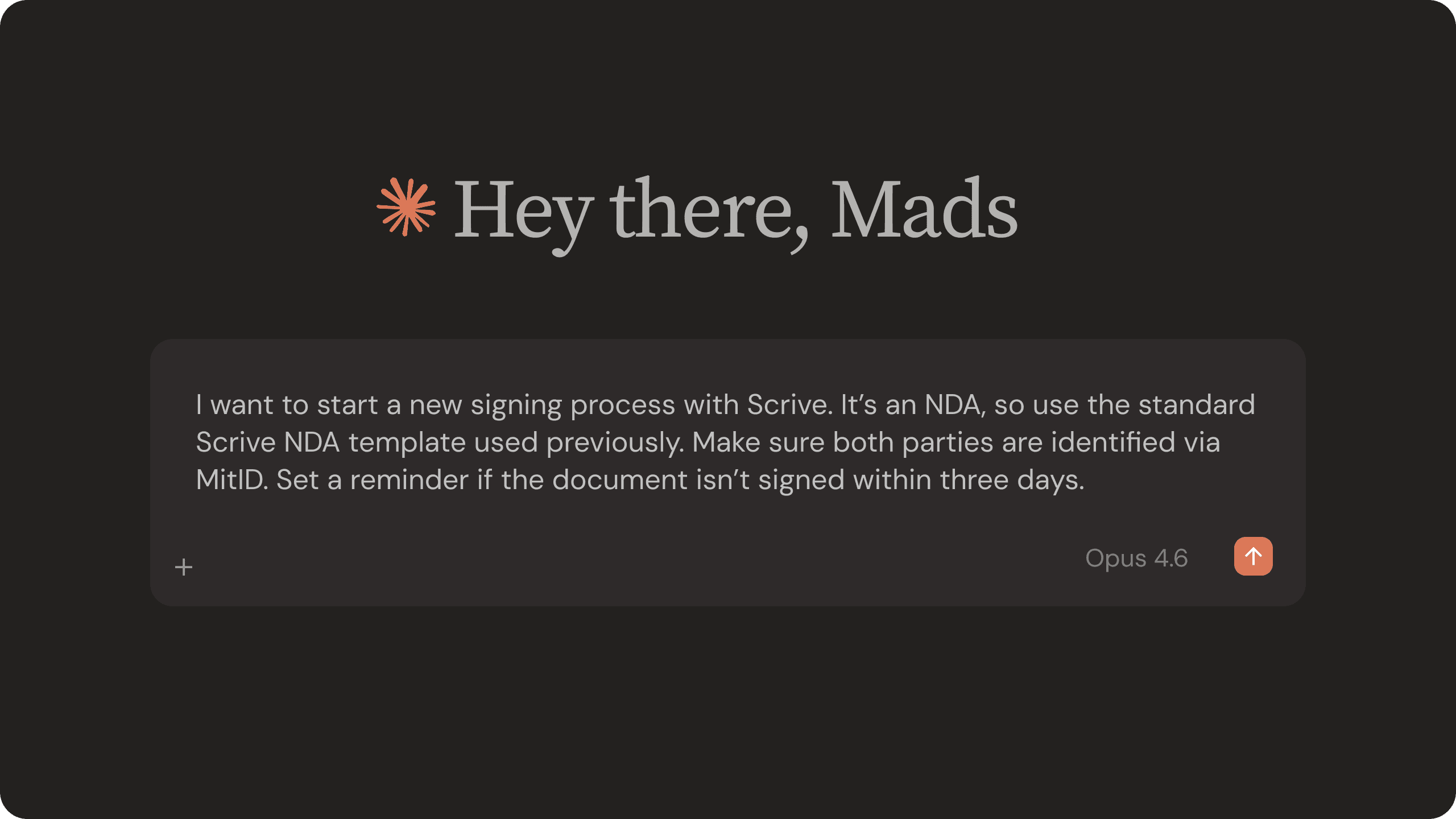
You don’t need a special format. Just describe what you want, as you would to a colleague. Most requests work first time when they answer four questions:
Already have a document that needs to become an agreement? You can ask your AI assistant to use a file as the starting point.
Create an agreement from this file and prepare it for signing.
Create an agreement from the attached NDA and prepare it for Anna Svensson at anna@example.com. She should sign with Swedish BankID with the signing deadline of 15 October 2026.
Giving the AI the file and the key signing details makes the intended workflow clear from the start, rather than requiring you to configure each part separately.
If you’re starting from a Scrive agreement template you can ask your AI assistant to prepare and send an agreement for signing.
Send the NDA to Anna Svensson at anna@example.com for signing.
Use the “Standard NDA” template and send it to Anna Svensson at anna@example.com for signing with Swedish BankID. Set the signing deadline to 15 October 2026.
Naming the template tells the AI exactly which document to use, while specifying the eID method and deadline avoids unnecessary follow-up questions.
Need to send the same agreement to a group of people? Give your AI assistant the list instead of adding each signer manually.
Send the employee agreement to everyone in this list for signing.
Use the “Employee Agreement 2026” template and send it to everyone in this list. Each person should sign with Swedish BankID and the signing deadline is 20 October 2026.
Giving the AI the source of the signer information and the signing method upfront makes it easier to create the complete signing flow without stopping to ask for missing details.
Some processes involve more than one document. Employee onboarding, for example, might require an employment agreement, confidentiality agreement and policy acknowledgement.
Send these three documents to Anna for signing.
Send the employment agreement, NDA and employee handbook acknowledgement to Anna Svensson at anna@example.com as one signing flow. She should sign all three documents with Swedish BankID, with a deadline of 20 October.
Describing the documents as one flow makes the intended relationship between them clear, while specifying the signer and eID method avoids having to configure each document separately.
You don’t need to manually check which agreements are still waiting for signatures. Ask your AI assistant to find them for you.
Which agreements are still waiting for signatures?
Find all agreements that are still unsigned and were sent more than five days ago. Show me the agreement name, recipient and current status. Then remind anyone who we’re still waiting for.
Adding a time period and describing which agreements you mean narrows down the results. You can also ask the AI to find the agreements first, review the results and then decide what to do.
Need to find an agreement but don’t remember exactly where it is? Ask for it using information you do know.
Find the agreement with Acme.
Find all agreements in the archive involving Acme AB that were signed between 1 January and 30 June 2026. Show me the agreement name and signing date.
Party names are a useful starting point, but adding a date range, status or other identifying information makes the search more precise.
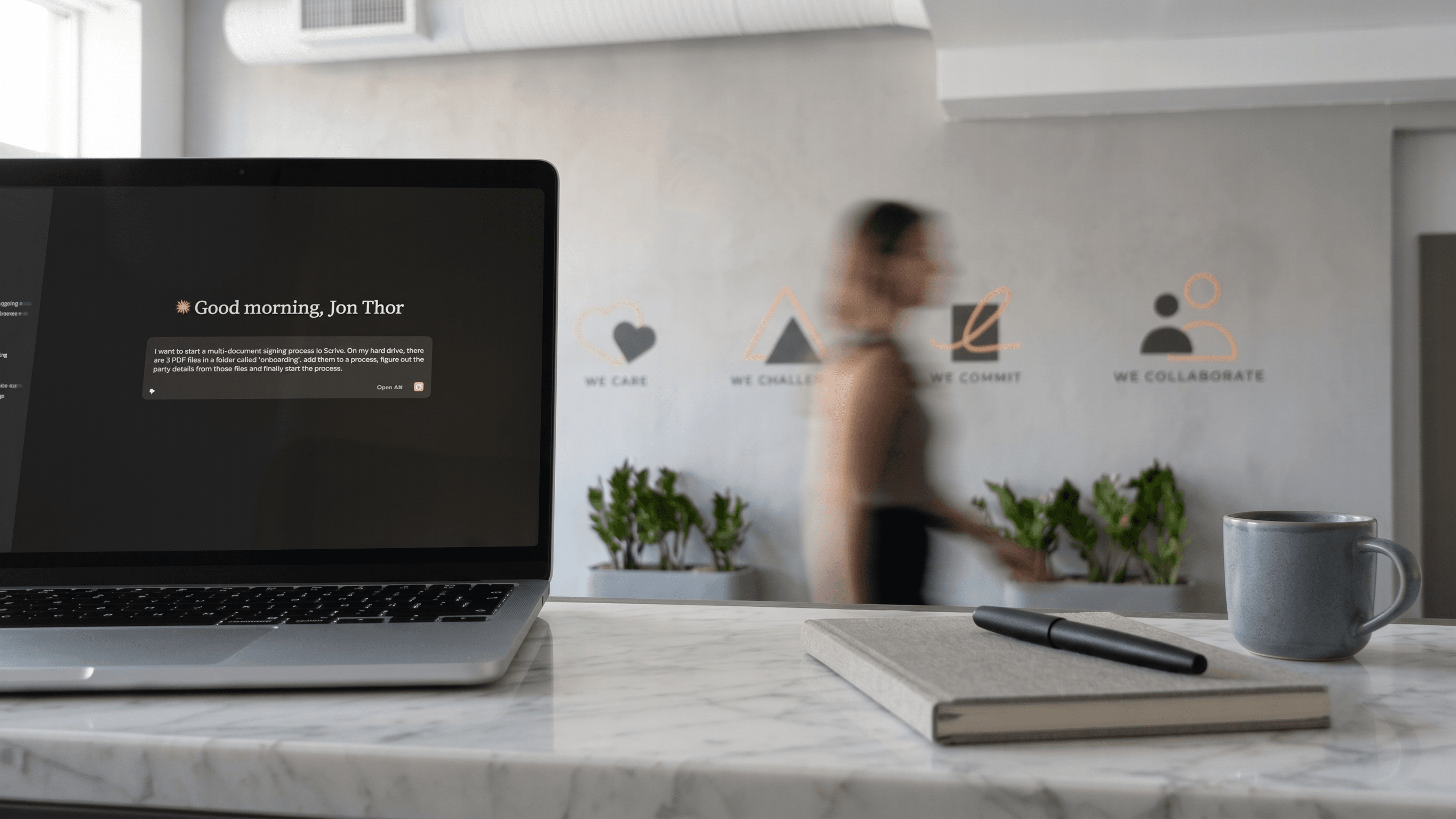
One of the useful things to keep in mind when working with Scrive through an AI assistant is that you don’t need to start from scratch for every action.
For example you could start with a prompt like:
Then follow it up with a series of others like:
And you can use the same conversation to follow up, refine a request or ask for the next step in a simple, conversational way.
Scrive MCP brings Scrive's e-signature, identity verification and agreement management into your AI workflow. Connect Scrive MCP and start working with agreements through natural-language instructions.
Get connectedEven if you're new to Scrive in general, you can test our MCP via our free trial and see what Scrive can do for you.
Free trial form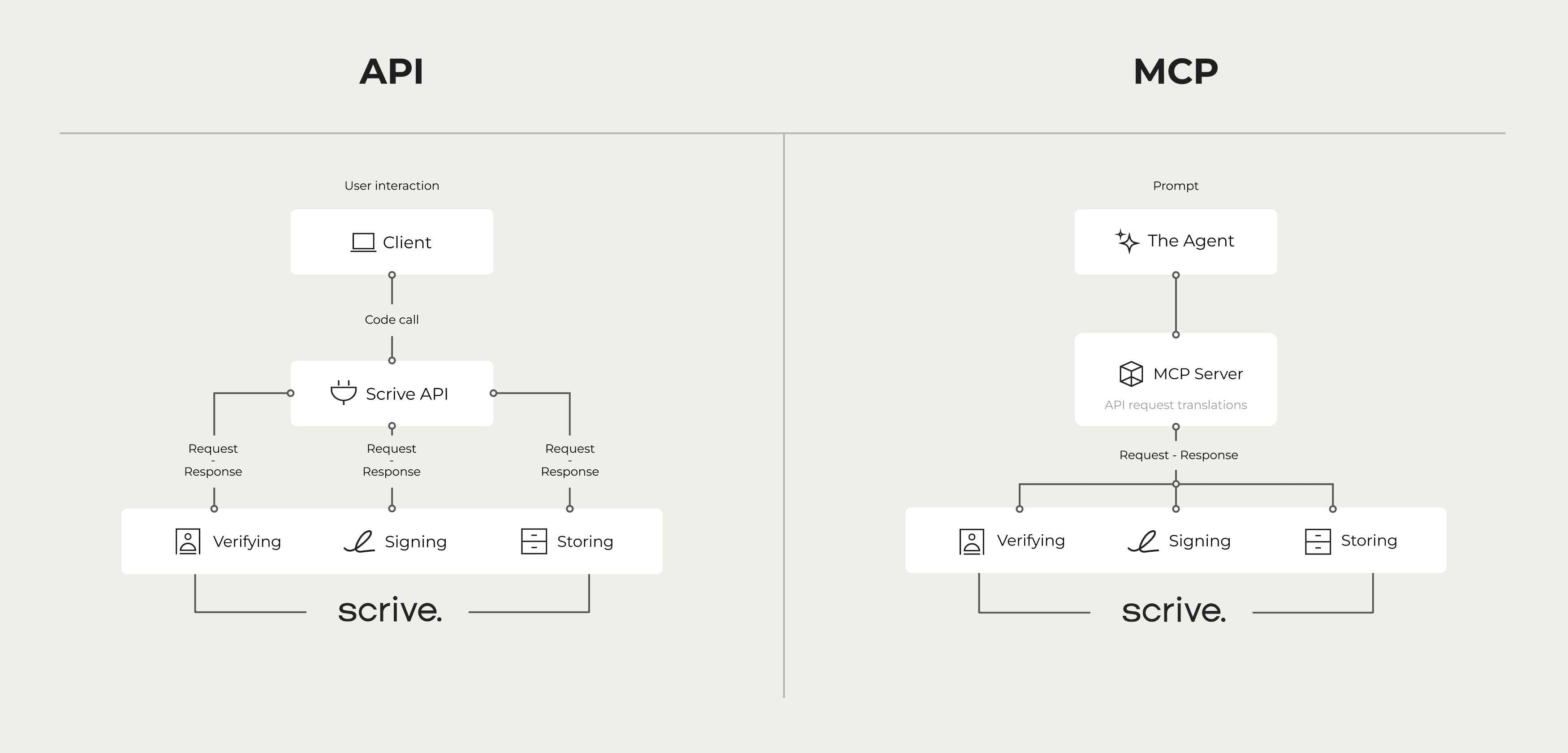
APIs connect software to software. MCP connects AI agents to software. Learn the difference and how Scrive's MCP server brings trusted eSigning to AI.
Read article
A side-by-side comparison of Scrive and DocuSign, using published G2 satisfaction scores. Sources and dates linked.
Read article
See what you've missed from past Scrive webinars, sign up for future ones and let us know what you'd like to learn more about.
Read article