Offboarding, the afterlife of a signed document

eSign Online

What happens when offboarding?

When a document is signed with Scrive, by default it is stored in your Scrive E-archive. But there are other cloud storage alternatives for the afterlife of a signed document.

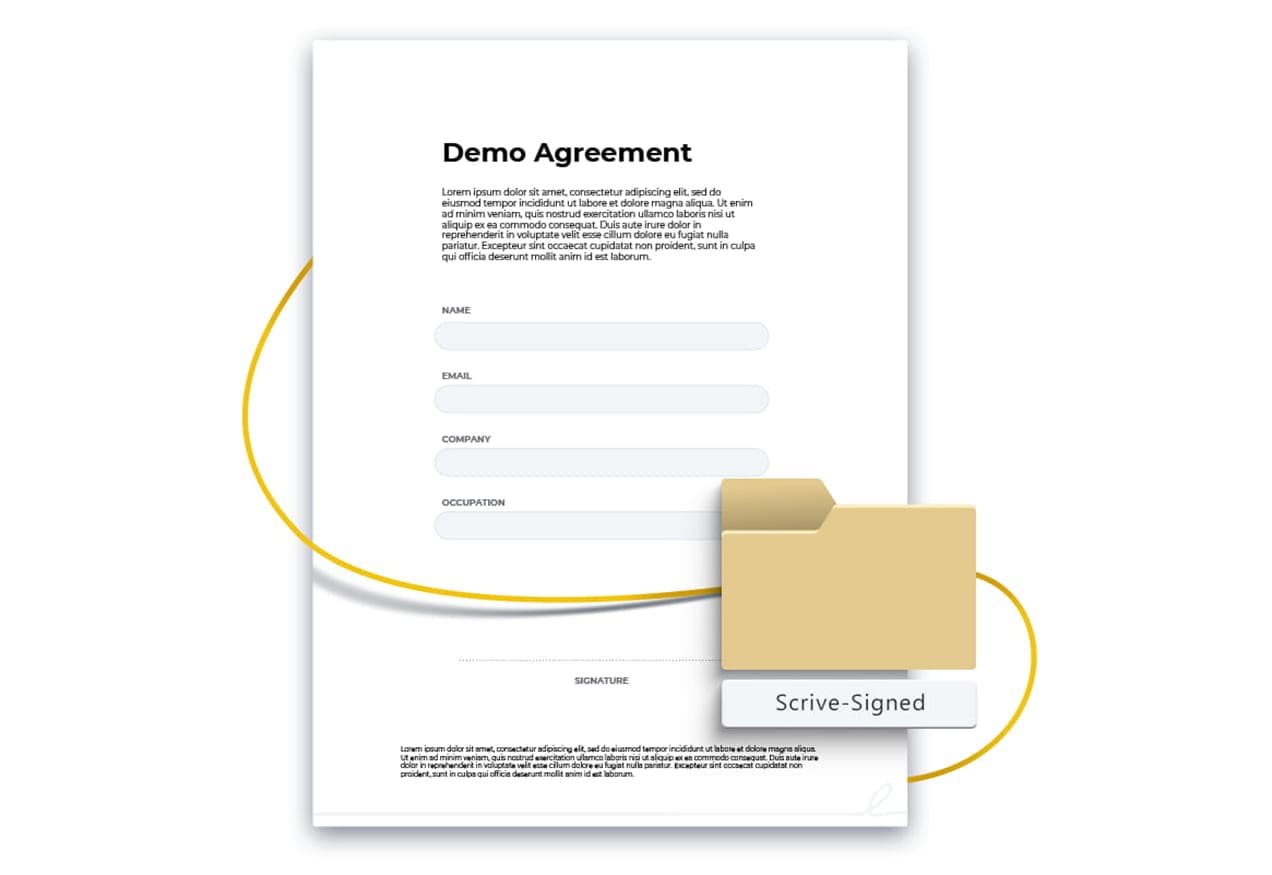
When all parties have signed the document, it is automatically archived to a folder called “Scrive-Signed” located at the root of your selected offboarding environment. This process takes just a couple minutes to complete.

Offboarding options

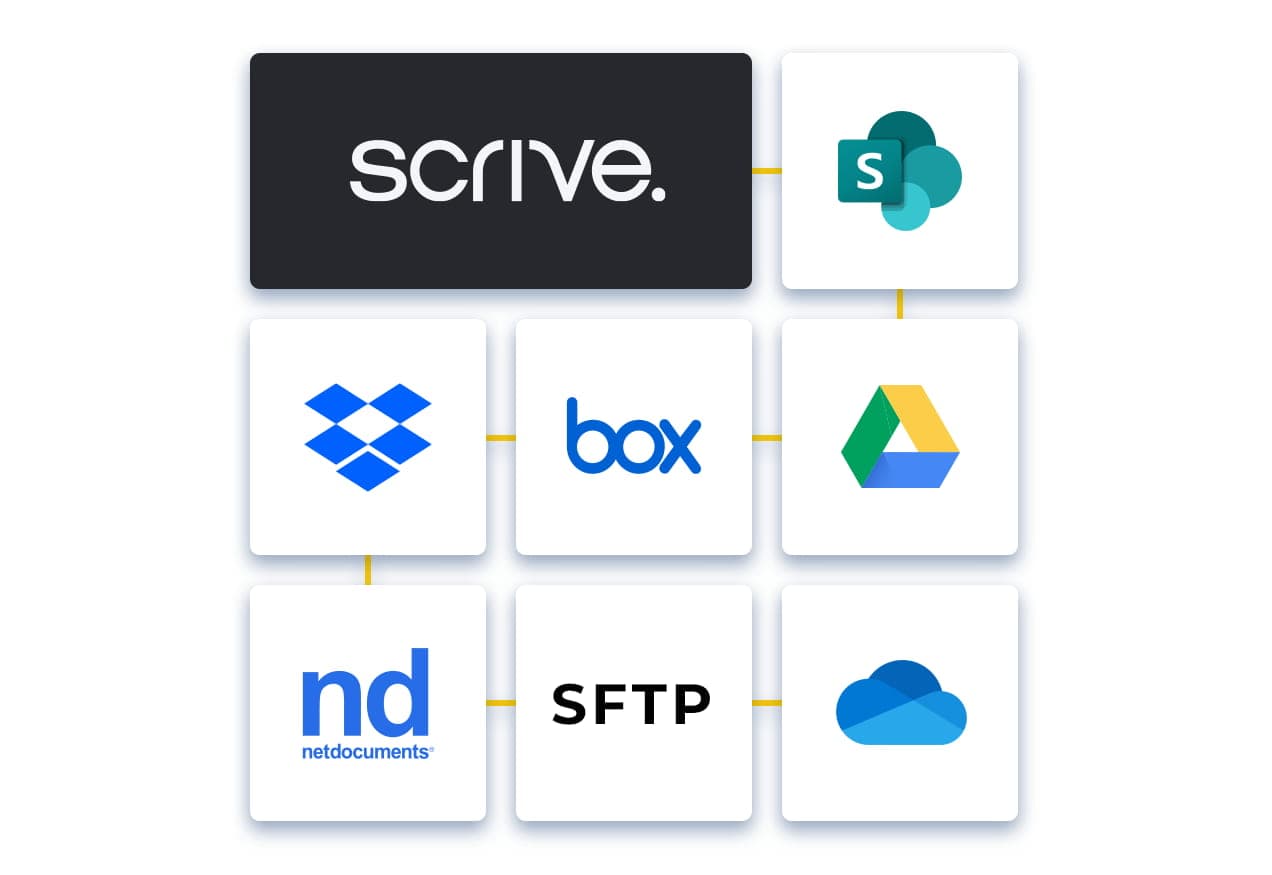
Currently you can offboard to following environments. For detailed instructions on connecting to your specific offboarding environment, see the relevant article:

How do I get started with offboarding?

There are different ways to get started with offboarding. It depends on the version of the user interface you are using and on your subscription. Start by checking your user interface, either it’s Scrive New or Scrive Classic.

Scrive New: I have the choice offboarding

You have access to turn on the offboarding.
Go to Account ➔ Integration settings ➔ Offboarding ➔ Select your storage service ➔ click connect ➔ follow the prompts to activate the connection to Scrive. It can take up to 24 hours to finalise.

Scrive New: I don’t have the choice offboarding

This option is only available if offboarding is included in your Scrive subscription. To add it to your service – upgrade your account here.

I’m using Scrive Classic

If you are using Scrive Classic you will not find this option and need to contact support to activate auto-offboarding (if it’s included in your subscription). Fill in this form or call us between 09-17 CET at +46 8 557 661 67.

Good to know before you turn the switch

  • Which users are affected?

    If a user with the Admin role sets up the offboarding settings, it will affect all the users in that account. If a user with the Standard role sets up the offboarding settings, it will only affect that user.

  • Is it possible to offboard to a specific folder?

    Yes, it is possible to offboard a signed document to a specific folder. It requires you to create a connection through for example Make, Zapier, or Power Automate. Please contact us if you have any questions.

  • How long does the setup process take?

    Follow the prompts to activate the connection to Scrive, which can take up to 24 hours to finalise.

  • Want to talk about it?

    In case you need assistance or want to add offboarding to your own process, if you haven’t already, get in touch with your account team or upgrade your account.

Get started now

To get started with Shareable Links and simplify your processes, reach out today and we’ll get you there

Phone numberThis field is required
+44
Number of employees
Are you an existing customer?This field is required*
Select country

Related articles