
How to add a signature in Google Docs
Guide
How to sign a Google Doc
In this guide, we will show you how to add a signature in Google Docs. Many people are unaware that this feature exists and still resort to physically signing contracts, not realising that Scrive can assist with this function. When you are using Google Docs, you can quickly insert your signature and send it off without any extra hassle. Here’s how to insert a signature in Google Docs using Scrive:
Before you start signing your Google Docs
1. Download the app

2. Open your chosen document in Google Docs.
3. Go to ‘Extensions’ > ‘Scrive eSign’ > ‘Open’ in the top menu.

Start adding your signature on Google Docs
1. Open your chosen document in Google Docs.
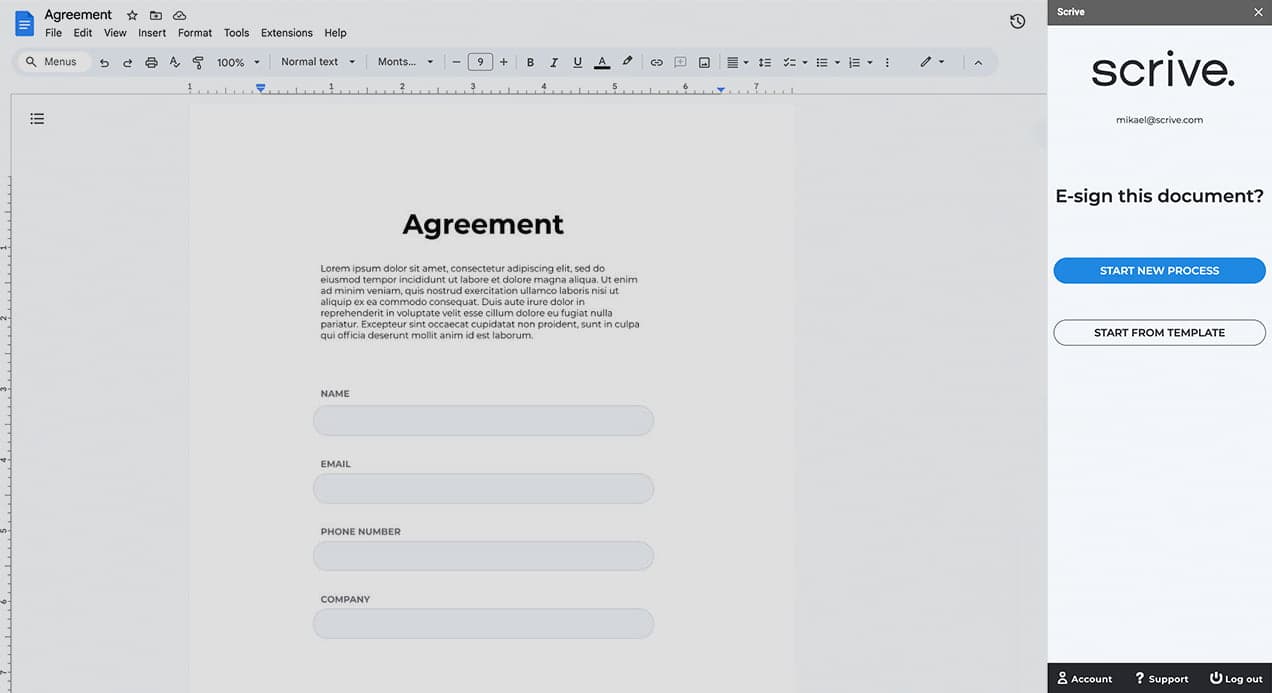
2. Initiate the Process:
In the sidebar, select ‘Start new process’ to begin the signing process. Alternatively, you can choose to start from a template.
3. Add Signing Parties:
Click on the “plus” symbol to add and configure the parties required to sign the document. Enter details such as name, phone, email, and company.

4. Configure Signing Details:
Choose the invitation and authentication methods for your signing parties. The available options will depend on whether you are using a free trial or a paid Scrive account.

5. Start signing your Google doc:
When you’re ready, click ‘Start signing.’ This will send out invitations to the added parties to sign, view, or approve your document.
Paid plans:
Paid plans offer more invitation options including both Email and SMS. Additionally, they provide various authentication methods such as SE BankID, NO BankID, DK MitID, and SMS-PIN.
Customise the signing process of your Google Doc
Customise Your Document:
Add a title to your document and personalise the invitation and confirmation messages for a better signing experience.

Begin Signing:
Once everything is set, click ‘Start signing’ to send your document for signing.

Signing:
The Google Doc has now been sent for signing and can be signed on any device.

Monitor status:
You can easily monitor the status of your documents directly from the sidebar, ensuring you’re always updated.

WHAT HAPPENS NEXT:
Your signing party receives an email or SMS invitation to e-sign the document in the Scrive signing portal. No Scrive eSign account is required, and they can sign on any device: phone, tablet, or laptop. Once the document is e-signed, it is securely saved to your Scrive E-archive with a legally-binding signature.
Track, monitor, and manage every step of the process to reduce lead times, cut administrative tasks, and increase document conversion rates.
GET STARTED:
Download the Scrive app for free. Begin with a 30-day free trial here, then explore which price plan suits your needs. When you’re ready, reach out to the Scrive sales team.
Requirements:
● Google account
● Scrive eSign Online account (or 30-day free trial)
Related articles

Your webinar hub
See what you've missed from past Scrive webinars, sign up for future ones and let us know what you'd like to learn more about.
Read article
Which documents can be signed electronically?
As organisations move away from paper-based processes, most contracts can be created, signed, and stored digitally.
Read article
Digital signatures
What is digital signing? Learn the basics and create secure signing flows for your contracts in seconds with our guide.
Read article