

Your webinar hub
See what you've missed from past Scrive webinars, sign up for future ones and let us know what you'd like to learn more about.
Read articleLooking to add your signature to a Word document? It’s easy. We’ll show you how to create your e-signature and add it to your document using Scrive. Follow these steps and find out how to get started signing docs in Word.
1. Open Microsoft Office: Log into your Microsoft Office account and open Word, PowerPoint, or Excel.
2. Install the Scrive eSign App: Go to AppSource by selecting “Insert” > “My add-ins” > “Find more add-ins at Microsoft AppSource”. Search for “Scrive”, then click “Get it now” and follow the installation instructions. Or click the link to the Scrive eSign App.

3. Activate Your Scrive Account: You must have an active account with Scrive eSign online. If you’re not already signed up, begin with our 30-day free trial. Once activated, log in via Word to access Scrive and start signing your documents.
Signing a Word document with Scrive involves a few specific steps:
1. Open Your Document: Start by opening the Word document you wish to sign.
2. Access Scrive eSign: Click on the “Scrive eSign” tab in the Word menu to open the sidebar and click the Scrive icon.
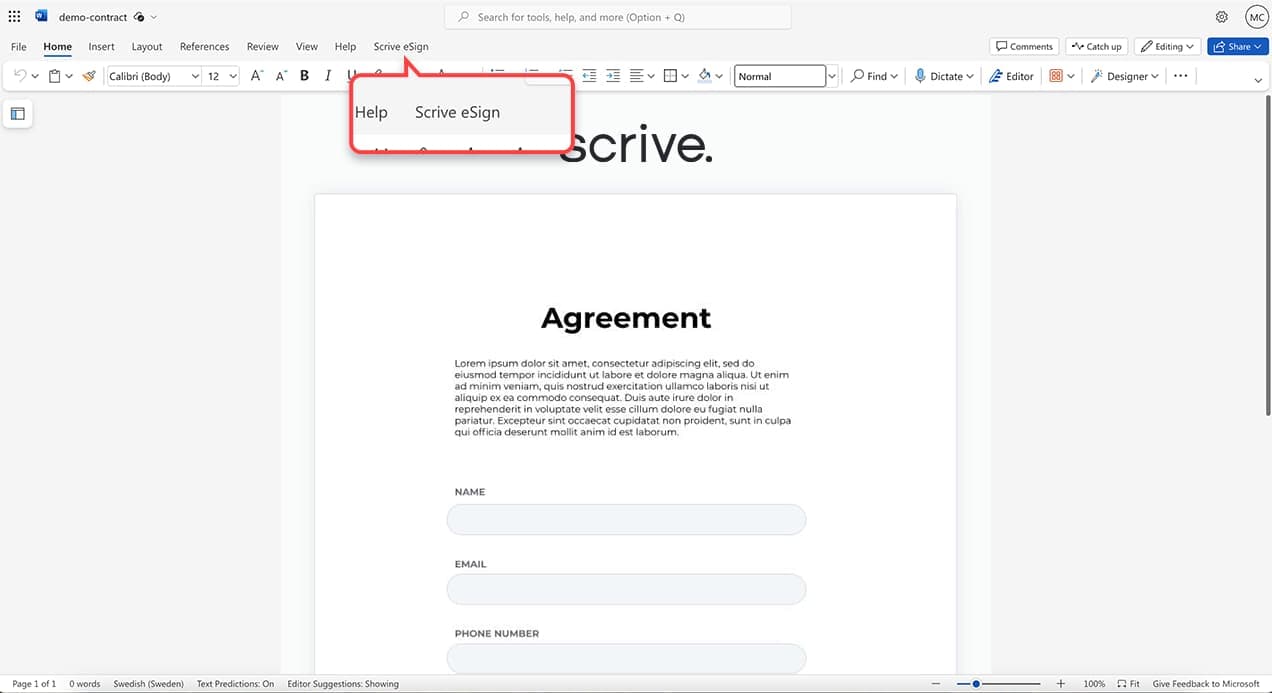
3. To open the sidebar: Click the Scrive eSign icon.

4. Initiate the Process: In the sidebar, select “Start new process” from the side bar menu to begin the signing process.

5. Add Signing Parties: By clicking on the “plus” symbol, you can add and configure the parties required to sign the document. Enter details such as name, phone, email, and company.


Choose the invitation and authentication methods for your signing parties. The available options will depend on whether you are using a free trial or a paid Scrive account.


Paid plans will have more options for invitations method; Email, SMS, Email & SMS. And more methods for authentication; SE BankID, NO BankID, DK MitID, SMS-PIN.


1. Customise Your Document: Add a title to your document and personalise the invitation and confirmation messages for a better signing experience.

2. Begin Signing: Once everything is set, click “Start signing” to send your document for signing

3. Signing: The word doc has now been sent for signing and can be signed on any device.
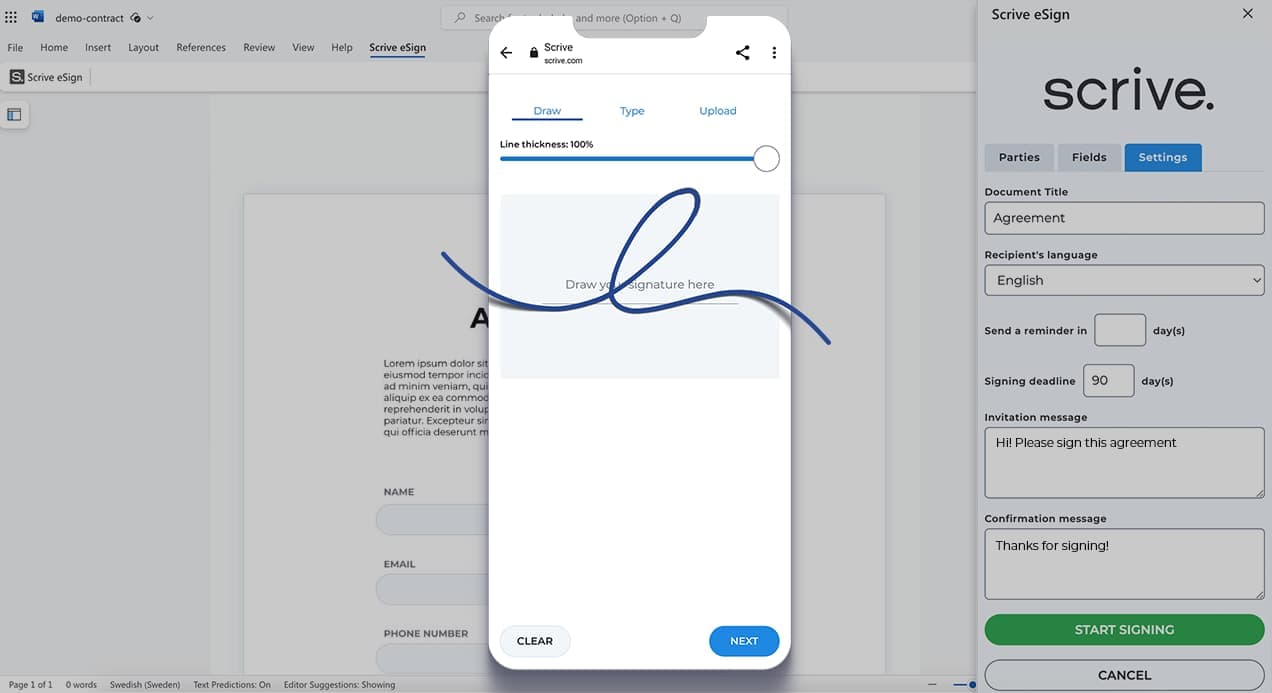
4. Monitor status: You can easily monitor the status of your documents directly from the sidebar, ensuring you’re always updated.

Before you start, make sure you have:
See what you've missed from past Scrive webinars, sign up for future ones and let us know what you'd like to learn more about.
Read article
As organisations move away from paper-based processes, most contracts can be created, signed, and stored digitally.
Read article
What is digital signing? Learn the basics and create secure signing flows for your contracts in seconds with our guide.
Read article